CTagger user guide
This guide covers everything you need to know about CTagger: what it is, how to install it, and how to use it to add HED annotations to your neuroimaging experiment events. CTagger can be used as a standalone application or as part of the EEGLAB BIDS data pipeline.
What is HED?
HED (Hierarchical Event Descriptors) is a framework for systematically describing events and experimental metadata in machine-actionable form. HED provides:
Controlled vocabulary for annotating experimental data and events
Standardized infrastructure enabling automated analysis and interpretation
Integration with major neuroimaging standards (BIDS and NWB)
For more information, visit the HED project homepage and the resources page.
What is CTagger?
CTagger is a desktop application that provides a graphical user interface for creating HED annotations. It helps researchers annotate their experimental events using HED tags through:
Interactive tag input with real-time search and autocomplete
Schema browser for exploring available HED tags
Validation to ensure annotations conform to HED schema rules
BIDS support for importing/exporting event files and sidecars
Field-level tagging for both categorical and continuous event data
CTagger is particularly useful for:
Researchers new to HED who want visual guidance for tag selection
Annotating BIDS datasets with complex event structures
Exploring HED schema hierarchies interactively
Creating HED annotations without writing code
Download and installation
Requirements
CTagger requires Java Runtime Environment (JRE) 8 or higher. Most systems come with Java pre-installed.
To check if Java is installed, run in a terminal:
java -version
You should see output like java version "1.8.0_211" or openjdk version "11.0.11" or higher.
If Java is not installed, download and install it from:
Standalone installation
Download CTagger.jar from the releases page
Run the application by double-clicking
CTagger.jarmacOS users: You may need to update Security settings to allow the app to run.
Linux users: You might need to make the jar executable first:
chmod +x CTagger.jar
EEGLAB plugin
CTagger is integrated into EEGLAB through the HEDTools plugin:
In EEGLAB, go to File → Manage EEGLAB extensions
Install the HEDTools plugin
After loading a dataset, HED options appear in the Edit menu
The source code for the HEDTools plugin is available at https://github.com/sccn/HEDTools.
Quick start
Launch CTagger by running the JAR file
Import a BIDS file:
Import
events.jsonsidecar (automatically detects categorical fields)Or import
events.tsvfile (you specify categorical fields)
Select a field from the “Tagging field” dropdown
Select a value (for categorical fields) from the “Field levels” panel
Build your HED annotation using:
Type to search for tags (autocomplete suggestions appear)
Click “Show HED schema” to browse the tag hierarchy
Press Enter to insert selected tags
Validate your annotations with the “Validate string” button
Save your work:
Copy to clipboard for manual use
Save as JSON dictionary for BIDS integration
Building from source
Prerequisites
Java JDK 8 or higher (tested with JDK 21)
Gradle 8.5+ (wrapper included in repository)
Build instructions
# Clone the repository
git clone https://github.com/hed-standard/ctagger.git
cd ctagger

# Build the JAR
./gradlew jar

# On Windows:
gradlew.bat jar

# The compiled JAR will be at:
# build/libs/CTagger.jar
Running locally
After building:
java -jar build/libs/CTagger.jar
Loading BIDS event files
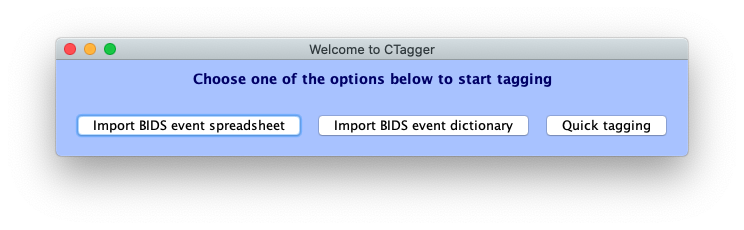
From the CTagger launcher window, you can import either BIDS event dictionaries or event spreadsheets to start tagging.
Importing JSON sidecars
If you select Import BIDS event dictionary, you’ll be prompted to choose an events.json file. CTagger will automatically:
Identify fields with the “Levels” key as categorical columns
Consider each sub-level as a categorical value for that field
Treat all other fields as having continuous values
Importing tabular files
If you select Import BIDS event spreadsheet and choose an events.tsv file, CTagger will ask you to specify which fields are categorical.

Once you specify the categorical fields, CTagger will automatically extract the unique categorical values from the file.
The main tagging interface
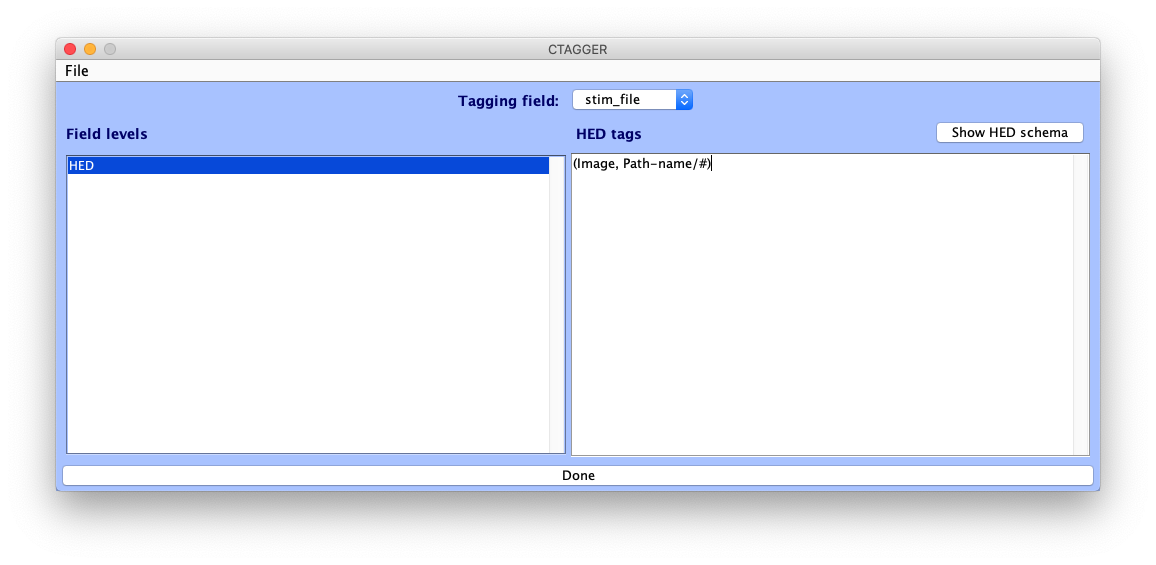
After importing, you’ll see the main CTagger tagging interface:
Interface components
Tagging field dropdown: Toggle between different fields (event columns)
Field levels panel (left side):
For categorical fields: Lists all unique values for the selected field
For continuous/value fields: Shows a single HED item where you can specify a template using the
#symbol
Tag editor panel (right side):
Build your HED annotation here
Tags are inserted as you type or select them
Important usage notes
Always select an item from the Field levels list before building your annotation
The HED string you create will be associated with the selected item
If no item is selected, your HED string will not be saved
You are now ready to start tagging!
Building HED annotations
CTagger provides several features to help you quickly and easily construct HED annotations.
Tag search and autocomplete
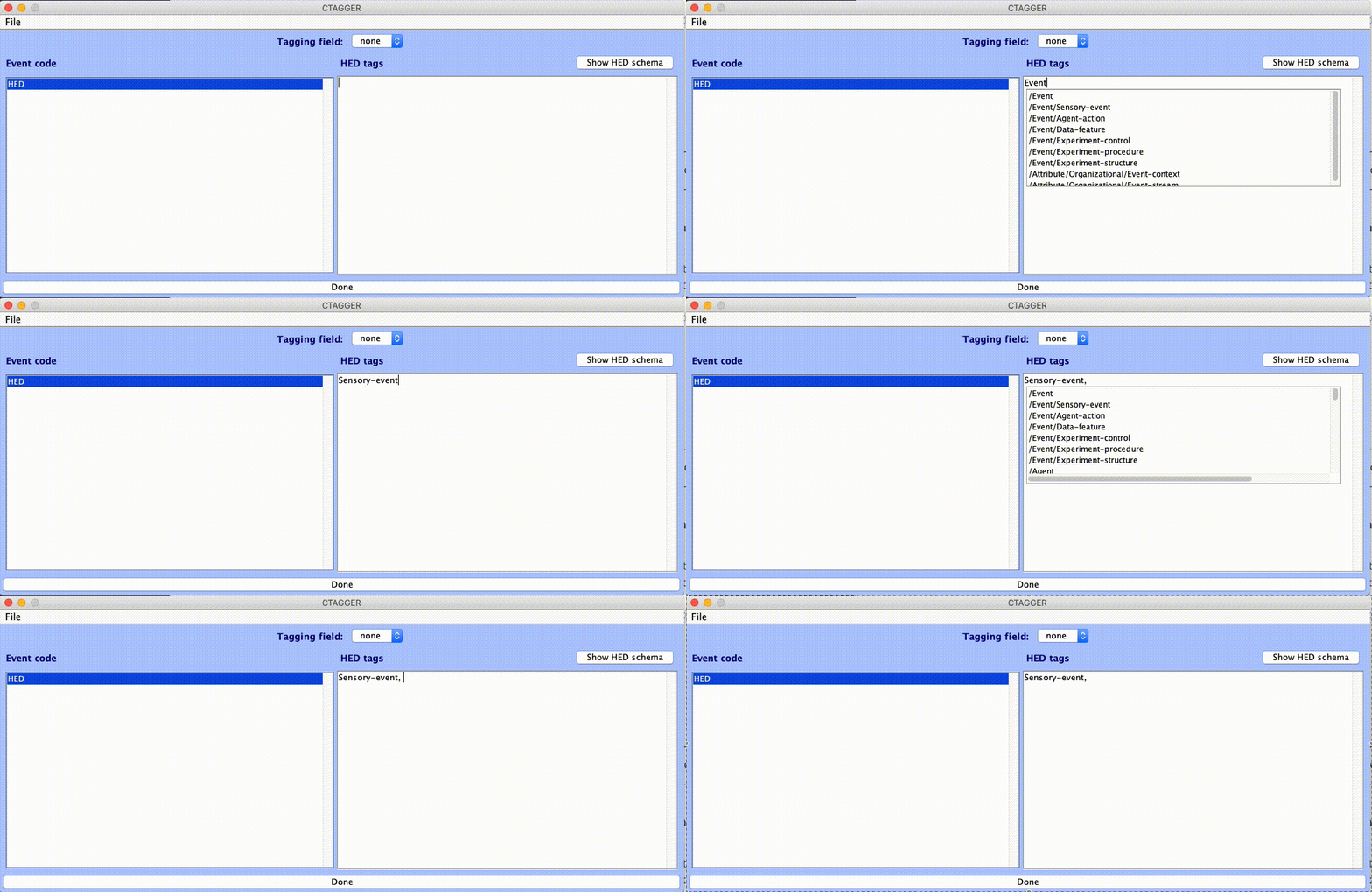
As you type in the tag editor, CTagger compares your input to all schema nodes and displays matching tags in the Search Results box below the cursor.
Navigation:
Press the down-arrow key to scroll through results
Press Enter/Return to select and insert a tag
Or click on a tag with your mouse to select it
Behavior:
CTagger inserts the short-form tag, replacing your input sequence
The Search Results box disappears after selection
Press Esc or click outside the box to dismiss it without selecting
Tags are matched case-insensitively against their long-form representation.
HED schema browser
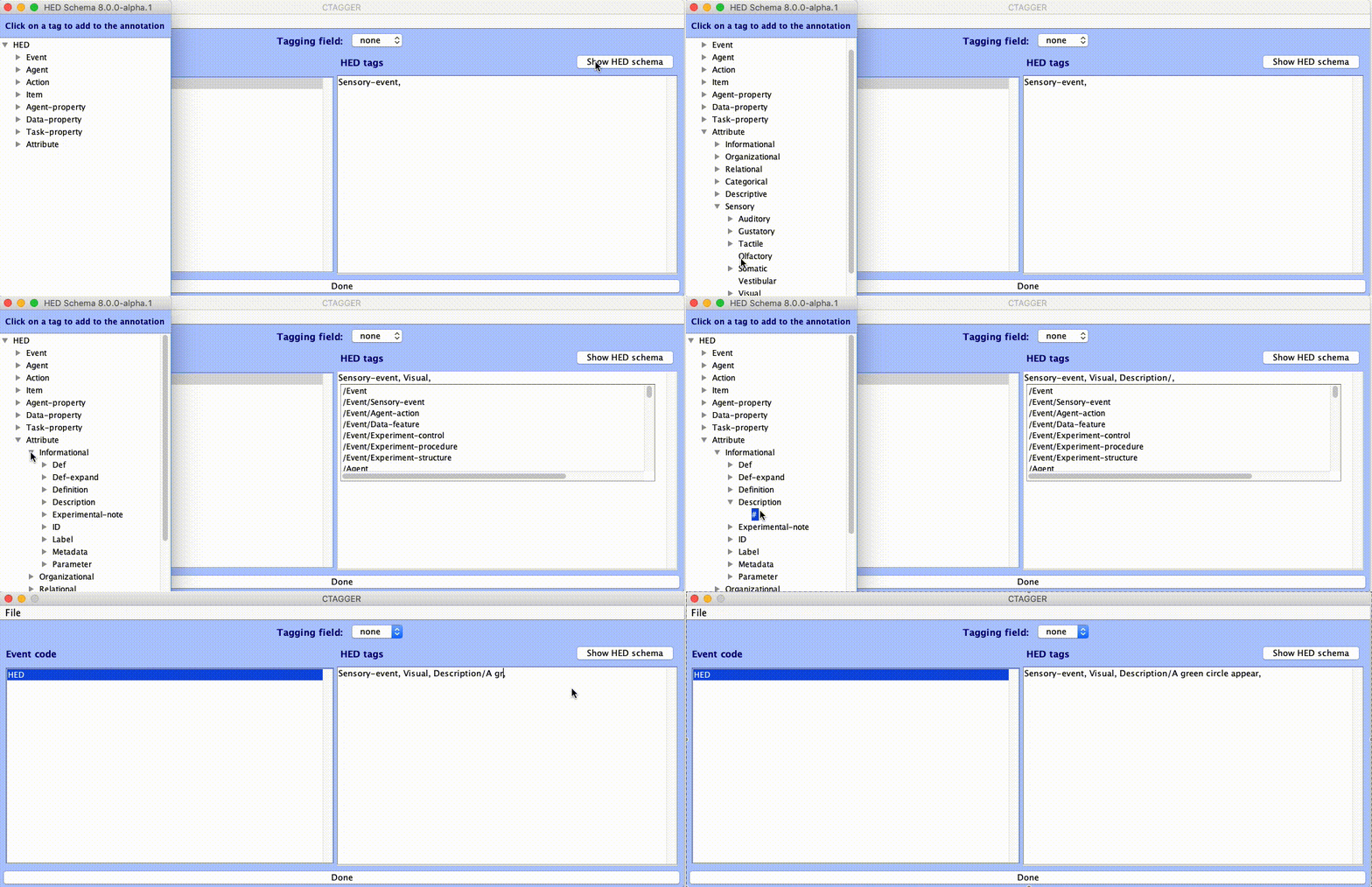
Click the Show HED schema button to browse the HED schema hierarchy interactively.
Features:
Expand/collapse nodes that contain children
Click on any node to insert its short-form tag
For nodes that take values, click the # symbol underneath to insert the node name followed by
/After insertion, type the value for that node
Tag groups
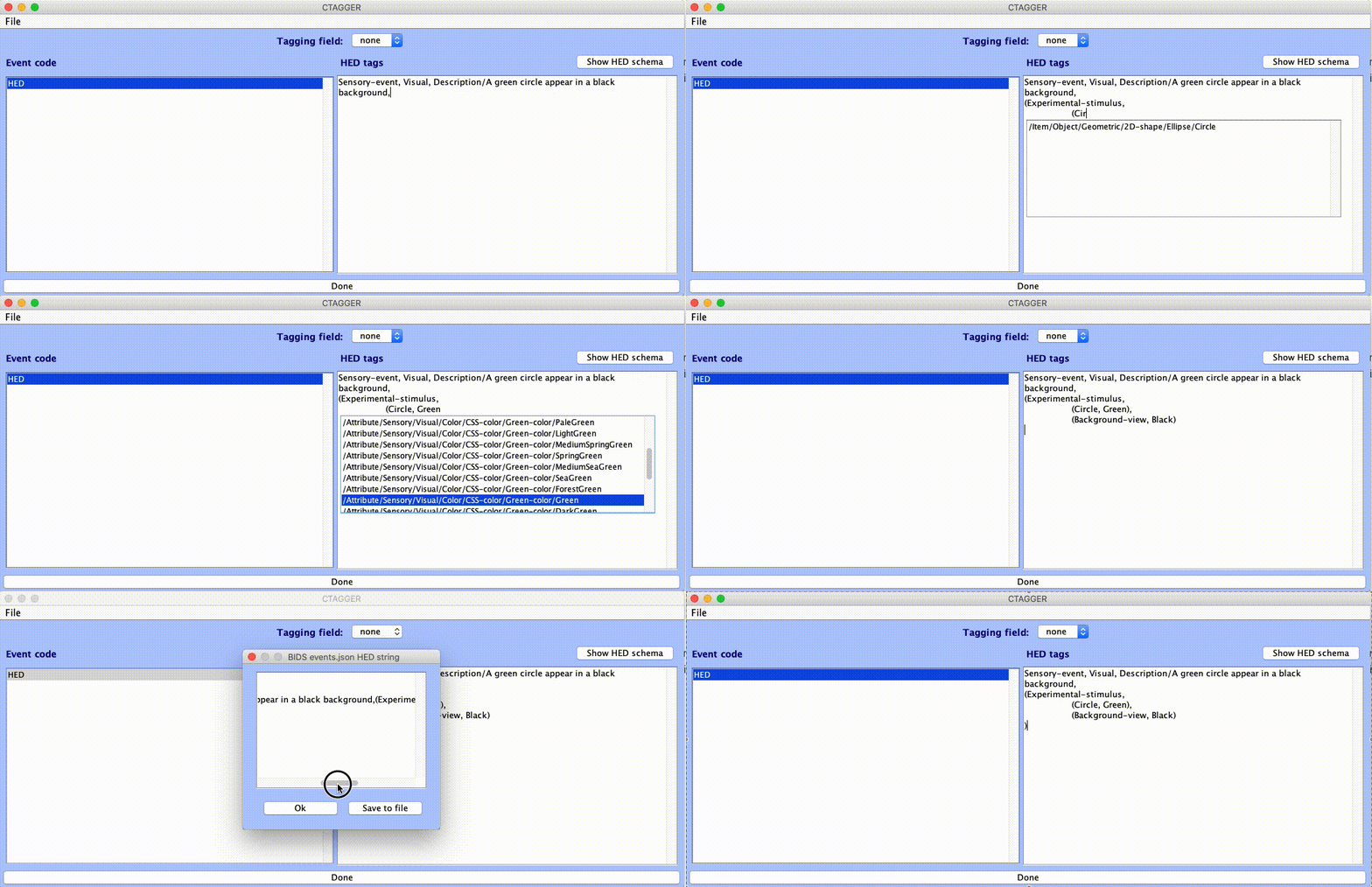
In HED, tags can be grouped together using parentheses to indicate they modify each other and should be interpreted as a unit.
Examples:
(Triangle, Green)describes a green triangleNested groups can describe more complex relationships
Formatting in CTagger:
Use Newline and Tab keys to format nested groups for readability
CTagger will automatically strip newlines and tabs from the final HED string
This ensures compatibility with BIDS and other formats
Reviewing tags
At any time during annotation, you can view the current (even if incomplete) long-form HED string:
Go to File → Review all tags
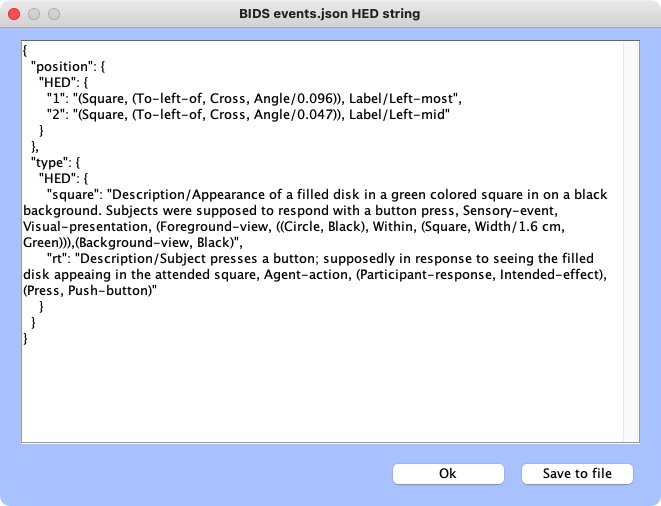
This displays your annotation in the full, long-form format.
Validation
Validating individual strings
Click the Validate string button to check the currently displayed HED string against the schema rules.
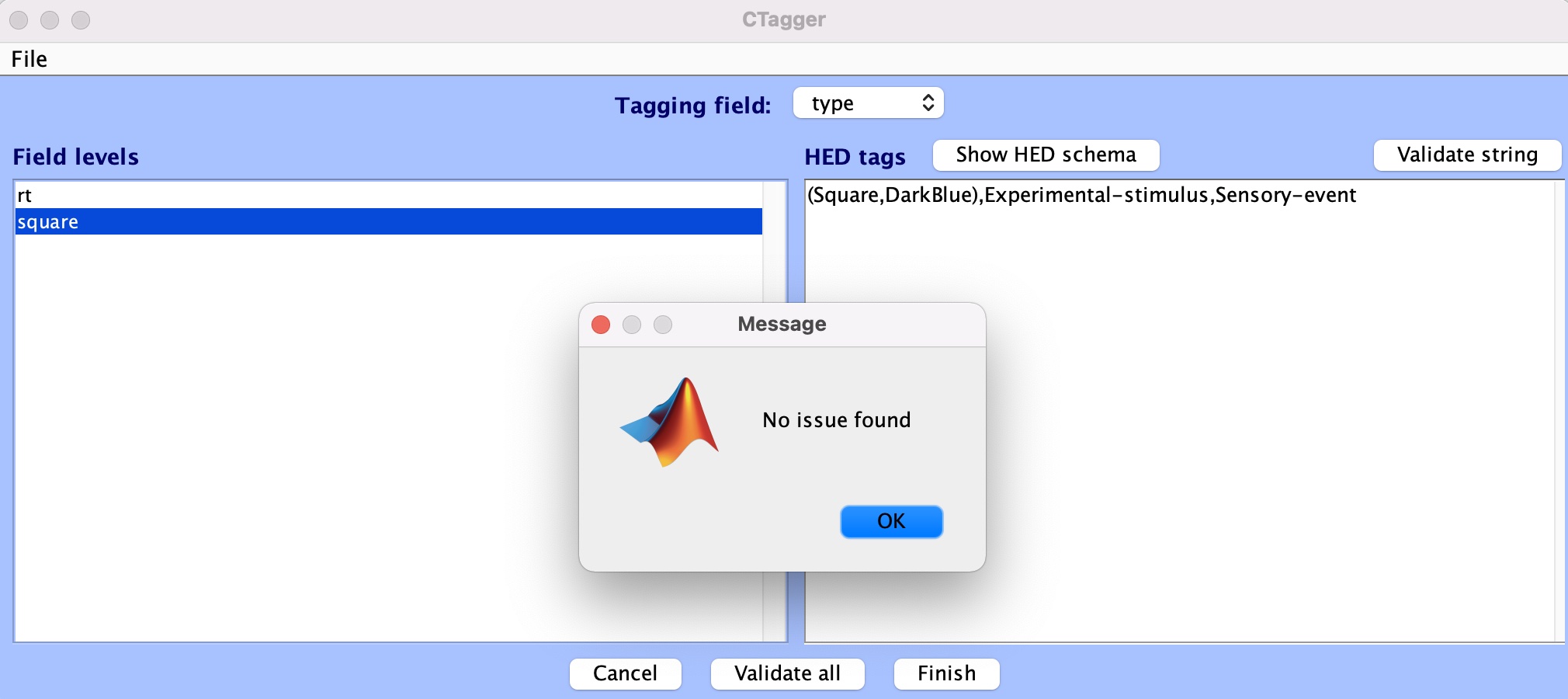
CTagger will report any errors and provide guidance on how to fix them.
Validating all annotations
Click the Validate all button to validate the entire event file’s annotations at once.
This checks all field-level annotations you’ve created across all fields and categorical values.
Important: You must fix all validation errors before finishing and saving your annotations.
Saving your work
Once you’ve completed your annotations and validation passes without errors:
Copy to clipboard
Select Finish → Copy to clipboard to copy your HED annotations. You can then paste them into another file or application.
Save as JSON dictionary
Select Finish → Save to file:
Provide a filename for your JSON file
Choose where to save it
CTagger saves the annotations in BIDS-compatible JSON format
The JSON dictionary maps field names and categorical values to their HED strings, ready for use with BIDS datasets.
Tips and best practices
Value fields with templates
For continuous/value fields (like duration, response_time), use the # placeholder in your template:
Duration/# ms
This template will be applied with the actual value from each event row substituted for #.
Organizing complex annotations
For complex event structures with many tag groups:
Use newlines and tabs to indent nested groups
This makes it easier to see the structure while editing
CTagger removes formatting when saving, maintaining BIDS compatibility
Iterative validation
Validate frequently as you build annotations:
Fix errors early before they compound
Use validation messages to learn HED rules
Validate individual strings first, then validate all at the end
Working with multiple fields
Complete one field at a time
Use the field dropdown to switch between fields
Validate each field’s annotations before moving to the next
Schema versions
CTagger loads the HED schema from the official repository or local files
Ensure you’re using the appropriate schema version for your dataset
Schema version should match what’s specified in your BIDS dataset
Keyboard shortcuts
Action |
Shortcut |
|---|---|
Insert newline |
Enter (when not selecting from search) |
Add tab indentation |
Tab |
Dismiss search results |
Esc |
Navigate search results |
Up/Down arrow keys |
Select from search |
Enter/Return |
Troubleshooting
Validation errors
Problem: Tags are marked as invalid
Solutions:
Check spelling and capitalization (use search/browser)
Ensure required children are included (consult schema)
Verify tag groups are properly closed with parentheses
Check that value fields have appropriate units
Schema not loading
Problem: Can’t see schema tags or autocomplete doesn’t work
Solutions:
Check internet connection (if loading from repository)
Try loading a local schema file
Restart CTagger
Check Java version is 8 or higher
BIDS file import issues
Problem: Can’t import events.json or events.tsv
Solutions:
Verify file is valid JSON/TSV format
Check that events.json has proper BIDS structure
Ensure categorical fields are properly defined with “Levels” key
Try importing as TSV and manually specifying categorical fields
Getting help
Documentation: This guide and the HED resources page
Issues: Report bugs or request features on GitHub Issues
HED Forum: Ask questions on the HED discussions forum
Email: Contact the HED team at hed.maintainers@gmail.com